

CLSS FAQ
Why is a Course not showing in a Subject?
The subject home screen only shows classes that have already been scheduled for a term. To view all available courses in the course catalog, click Show courses with no sections.
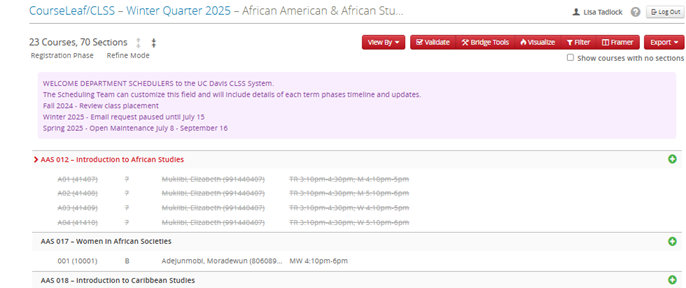
If still not visible, the course may not be available. If a course approval form was recently submitted please check in with the ICMS team to check on the status. Once the course is added to Banner it will show in CLSS the day after it has been processed.
How to find the Status of an item in the Workflow
You can view all items in the Workflow for an instance in your dashboard
Refine Mode: You can find where an item is in Workflow at the bottom of the scheduling form.
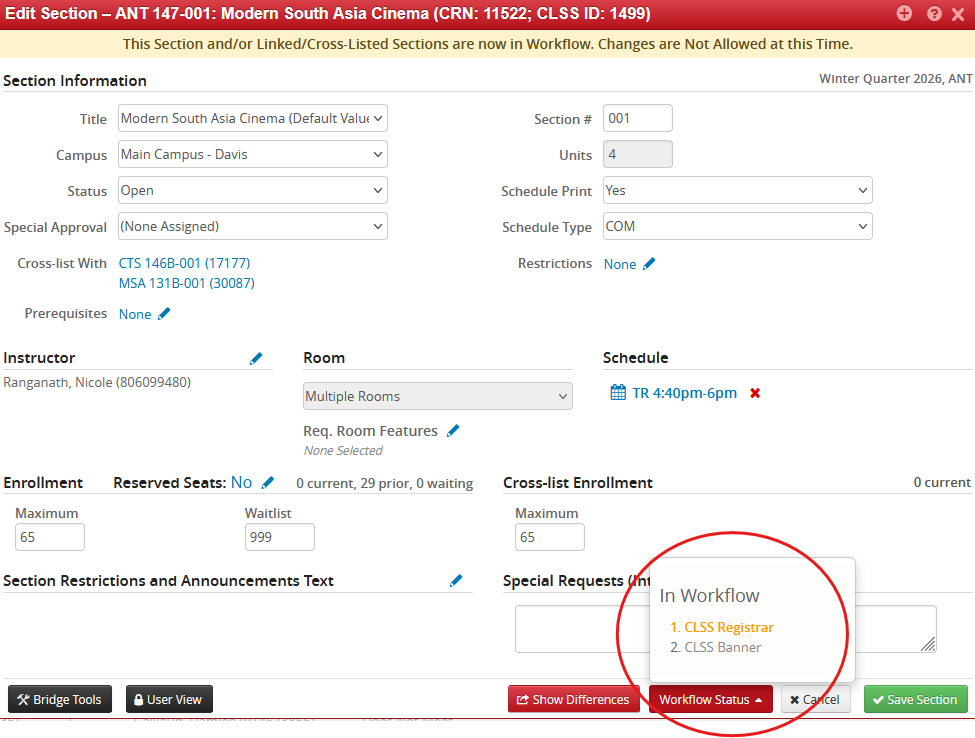
To view who is in the role of the workflow, hover over the role, and the individual(s) email will present itself in the bottom left-hand corner of the screen.
How do I differentiatate an Error from a Warning?
Error can’t Save (fatal flaws - these are your friend):

Warning can Save, but proceed with caution:

Workflow Save for Approval:

Internal rooms not showing in CLSS as an option?
There may be a few reasons the room you are looking for may not exist in the dropdown:
- The location does not exist in Banner and needs to be added. Complete an Add Classroom to Banner request.
- Location is offline due to maintenance
- Location has not been assigned to a scheduling unit. Please contact the Scheduling team directly at [email protected]